
Edit and export·4 min read
Guide attention with zooms and the cursor
Choose automatic or manual zooms, smooth cursor movement and show clicks clearly.
On this page
Start with automatic zooms
A fresh Screenix recording can start with zoom blocks based on recorded clicks. Play through them first and keep the moments that help your audience follow the lesson or demonstration.
In Zoom, turn on Zoom effect and choose Auto zoom to generate a new set of zooms from available click data. If there is no click data, this action cannot create automatic zooms.
Add a zoom exactly where you need it
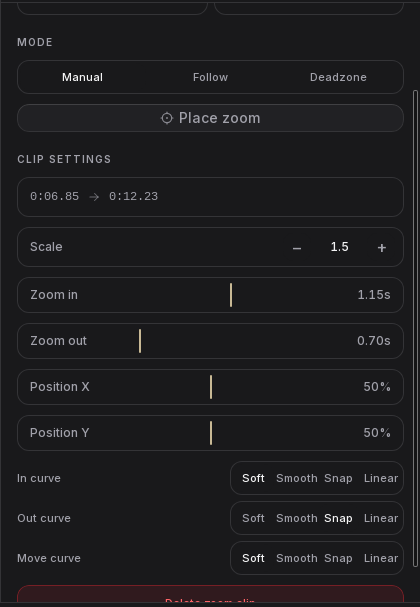
Manual zoom stays on the area you choose. It is useful for a button, formula or code example that should stay still while you explain it. It also works when the recording has no usable cursor data.
Position X and Position Y let you fine-tune the center. The center is kept inside the image, so it may stop before the extreme edge at some zoom levels.
The Soft, Smooth, Snap and Linear curve controls change how a manual zoom starts, ends and moves. Start with the defaults and change one setting at a time.
- Move the playhead to the moment you want to explain.
- Open Zoom, enable Zoom effect and choose + Zoom.
- Select Manual, then Place zoom, and position the area in the preview.
- Adjust Scale and resize the zoom block on the timeline to cover the explanation.
- Adjust Zoom in and Zoom out to control how quickly the view moves, then play across both ends.
Choose how the zoom follows movement
Follow and Deadzone need recorded cursor positions. Use Manual when that data is missing or you want a steady view.
- Manual: keeps the view on your chosen area.
- Follow: follows the recorded cursor path. Smoothing and Predict control the movement around the pointer.
- Deadzone: lets the cursor move within an area before the view follows it. Use Deadzone size, Pan duration, Speed and Predict to tune the movement.
Make the pointer easier to follow
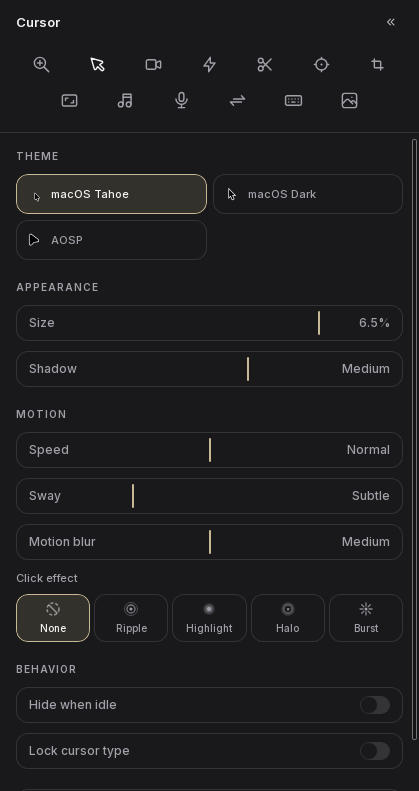
Open Cursor to choose a theme and size when cursor editing is available. Use Sway and Motion blur to change its movement style. Lock cursor type keeps its type consistent instead of showing each recorded pointer change.
Choose a Click effect such as Ripple, Highlight, Halo or Burst, then adjust its Intensity. Click effects need captured click events. Choose None to turn them off.
For lessons, a readable pointer and a subtle click effect can be enough. Play the recording at the size your audience is likely to watch before making the pointer larger.
Hide the cursor when it distracts
Turn on Hide when idle and adjust Idle delay to fade the pointer when it stops moving.
For a particular moment, choose Hide cursor at playhead, resize the new cursor block and adjust Fade duration. Delete that block to restore the usual visibility for the section.
If a zoom or cursor effect does not work
- Cursor postprocessing is not available: this recording has no editable cursor layer. The pointer may already be part of the video. Reopen the original project with its companion files, or use manual zoom.
- Auto zoom does nothing: the recording may have no captured clicks, or the video may still be loading. Add manual zoom blocks when needed.
- The picture does not zoom: check Zoom effect, the selected block's Scale, and whether playback is inside that block.
- The view follows the wrong area: try Manual and Place zoom. For Follow or Deadzone, check that the original cursor data is still beside the recording.
- The pointer vanishes: check Hide when idle and cursor-hide blocks.
- The pointer appears twice or is offset: keep a short example and email [email protected]. Include whether you recorded a screen, window or area, and which Linux desktop you use.