
Edit and export·4 min read
Trim, cut and change speed
Remove setup time and mistakes, adjust the pace and make clean transitions.
On this page
Find your way around the timeline
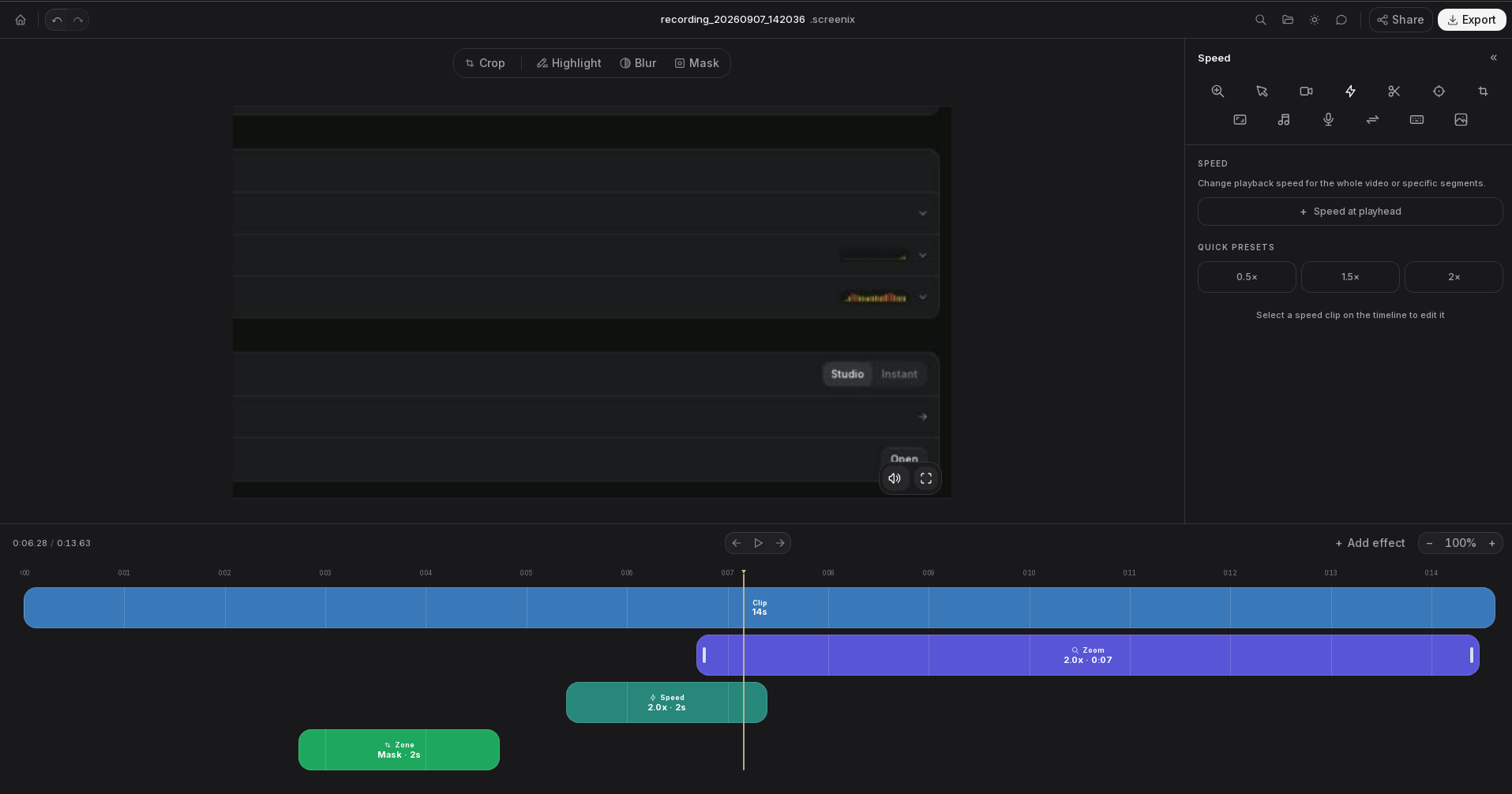
The moving line on the timeline is the playhead. It marks the moment you are viewing. Click the timeline to move it, then use Play or press Space to watch from there.
The + and − timeline controls change how closely you view the timeline. They do not zoom into the video. Use them to make short edits easier, and click the percentage to reset the timeline view.
Effect blocks show when a zoom, cut, speed change or overlay is active. Click a block to edit its settings, drag its middle to move it, and drag its edges to change its duration.
Remove time from the beginning or end
Trimming changes the part used in the edit and export. It keeps the source recording intact. Use Undo while editing if you move a handle too far.
- Find the start and end trim handles on the main recording track.
- Drag the start handle to the first moment you want to keep.
- Drag the end handle to the last moment you want to keep.
- Play the opening and ending to make sure you kept the whole sentence or action.
Remove a mistake from the middle
Creating a cut block only marks a region. The region remains in the video until you choose Remove segment. Think of this as marking a section to remove, rather than splitting the recording into independent source videos.
Removed sections collapse on the timeline and are skipped during playback. Select a removed section and choose Restore segment, or use Undo, to bring it back.
- Move the playhead to the start of the unwanted section.
- Open Cut and select Cut at playhead, or press S.
- Drag the cut block's edges until it covers the full mistake or pause.
- With that block selected, choose Remove segment.
- Play across the join. Adjust the block if a word or mouse action is cut too early.
Speed up waiting or slow down an explanation
The quick presets at the top of Speed add a speed block across the whole trimmed video. The presets inside Selected clip only change the selected block.
Avoid overlapping speed blocks when you want predictable results. A whole-video preset adds a block rather than clearing earlier speed edits. Select and delete an older block if you no longer need it.
The displayed finished duration takes cuts and speed into account. Effect blocks still refer to moments in the source recording, so an effect's times can differ from the elapsed time in the exported video.
- Move to the section you want to change and open Speed.
- Choose Speed at playhead. A new speed block starts at 2×.
- Resize the block to cover the section, then set its Speed from 0.25× to 4×.
- Listen as well as watch. A faster spoken explanation may be harder to follow.
Soften joins and add a fade
Open Transition and enable Smooth cuts to soften the change between kept sections. Adjust Duration and try Dissolve, Blur or Zoom in the Preview style controls.
Use Fade in for the beginning of the finished video and Fade out for the end. Keep transitions short when teaching a precise sequence of steps so the next action stays easy to see.
Useful editing shortcuts
Click outside a text field before using editing shortcuts. Undo covers supported timeline edits, so do not assume every appearance or audio setting has an undo step.
- Space: play or pause.
- Left and Right arrows: step through the video. The Previous frame and Next frame buttons are also beside Play.
- S: add a cut region at the playhead.
- Ctrl+Z: undo an available timeline edit. Ctrl+Shift+Z or Ctrl+Y: redo.
- Ctrl+C and Ctrl+V: copy a selected effect block and paste it at the playhead.
- Ctrl+K: open Commands and search for an editor action.
If the result is not what you expected
- The unwanted section still plays: select its cut region and check whether it says Remove segment. If it does, removal has not been enabled yet.
- An effect disappears: check whether its block is outside the trimmed range or inside a removed section.
- The video jumps: check cut regions and the Smooth cuts setting before changing zoom settings.
- There is nothing to export: move the trim handles apart or restore a removed segment so some video remains.
- Music is out of time after cuts or speed changes: review a short finished export. For help with the timing, contact support and include the times where it differs from the preview.