
Screenshots and sharing·4 min read
Share a finished video or screenshot
Upload your finished work, copy a viewing link, and understand storage and trial limits.
On this page
Choose where your file is stored
Screenix hosted stores your finished file with Screenix and creates a viewing page. It is available during an active signed-in trial and on eligible subscription and team plans. A lifetime license uses Your storage for sharing.
Your storage uploads to a storage account you connect in Settings. This is available on paid plans that include custom storage sharing. Follow Connect your own storage if you want to use it.
You can also save the finished file locally and send it through a service you already use. An upload is a separate copy of the finished work. Keep your local project and export if you need to edit or upload again later.
Share a video
Sharing uploads the selected export. If you change the project afterward, export and share the new version. Editing the project does not update an existing uploaded video.
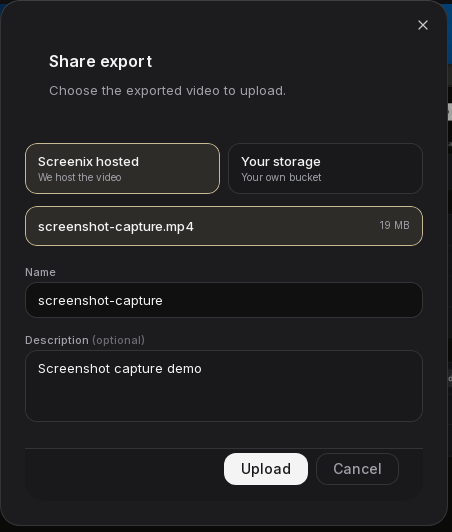
Names can contain up to 120 characters and descriptions up to 2,000 characters. These details appear on the viewing page.
- Finish editing and export the recording.
- Choose Share from the video editor or the completed export. If Export required appears, export first and then return to Share.
- Select the exported file you want to upload. If there are several exports, check the filename and size so you share the correct version.
- Choose Screenix hosted when a destination choice is shown. Add a clear Name and an optional Description.
- Choose Upload and keep Screenix open until the link is ready. Larger files take longer.
- Use Copy Link and open the link in your browser. Review the video and its sharing settings before sending it to your audience.
Share a screenshot
Screenshot sharing uploads a PNG containing your finished edits. Hosted screenshots can be up to 25 MB each and use the same storage allowance as videos. The editable project is not uploaded by this action.
Each new upload creates a new link. If you revise the screenshot later, upload the revised image and send the new link.
- Finish the crop, redactions, background, arrows, and callouts in the screenshot editor.
- Choose Share. Select Screenix hosted or Your storage if both are available.
- For Screenix hosted, give the screenshot a name and check the available storage shown in the dialog.
- Choose Upload. When the link appears, use Copy link and open it to review the finished image.
Understand the upload limits
Videos and screenshots draw from the same storage pool. An upload can fit the per-file limit and still fail if there is not enough total space left. Check your account’s current allowance in the dashboard.
Deleting a hosted file frees its storage after deletion succeeds. Deleting a trial screenshot does not restore one of the five screenshot shares.
- Active trial: 1 GB of shared storage, videos up to 250 MB and five minutes each, up to 10 hosted videos, and five hosted screenshot shares. A hosted screenshot can be up to 25 MB.
- Individual subscription with hosting: 25 GB of shared storage, videos up to 500 MB each, and screenshots up to 25 MB each.
- Team hosting: pooled storage of 50 GB per seat. The website allowance is up to 2 GB per video, but the current desktop uploader accepts files only up to 500 MB. Screenshots remain limited to 25 MB.
Keep a copy before the trial ends
Trial shares have a retention period that ends 30 days after the trial ends. Without an eligible hosted plan, they are subject to deletion after that period. Save your finished files locally if you want to keep them.
An eligible paid plan with hosting preserves trial shares. A lifetime license does not include Screenix hosting, so use your own storage or keep local copies. Changing a trial link’s expiration setting does not replace the trial retention policy.
For questions about an allowance or a trial share, use the contact form or email [email protected].