
Screenshots and sharing·7 min read
Capture and edit screenshots
Turn a screen or existing image into a clear illustration with cropping, arrows, callouts, backgrounds, and redactions.
On this page
Take a screenshot or open an image
- Open Screenshot in the main Screenix sidebar.
- Choose Full screen to capture a display, Select area to choose a region, or Window to capture an application window. Screenix briefly hides its own window.
- Complete the selection. On Wayland, your desktop may show its own screenshot picker. Choose the area or window there and accept it.
- In the Screenix selection screen, drag around the area, then choose Capture or press Enter. For Window mode, click a window or drag your own area. Press Escape or choose Cancel to stop.
- To edit an image you already have, choose Open image instead. The image opens in the screenshot editor.
Crop, magnify, and choose a background
Use Crop to remove edges you do not need. In Select region, drag the corners or edges of the box. Drag inside it to move the crop, then choose Preview to see the result. The cropped size is shown in pixels.
Use Magnify to make one detail larger in the finished image. Increase the Magnify slider above 1x, move the highlighted region over the detail, and choose Preview in the tool options. Magnify supports up to 4x. Enlarging a small image can make text look softer.
Open Background at the left of the toolbar to adjust the background, frame, corners, and shadow. With the floating background enabled, choose an aspect ratio such as 16:9 for slides, 1:1 for a square image, or 9:16 for a vertical layout. In Crop, Resize background controls whether the background follows the crop.
Use Reset in the Crop or Magnify options to restore that adjustment. Switch back to Select region to change its area. The main toolbar’s Preview button shows the finished screenshot without editing handles.
To inspect details without changing the finished image, use the bottom +, −, percentage, and Fit controls. Ctrl+scroll zooms the canvas view, and Space+drag pans it. Click the percentage for actual size or Fit to see the whole image again.
Add arrows, shapes, and text callouts
Use short labels such as “Choose this option” or “Start here.” One or two clear callouts are usually easier to follow than a crowded image.
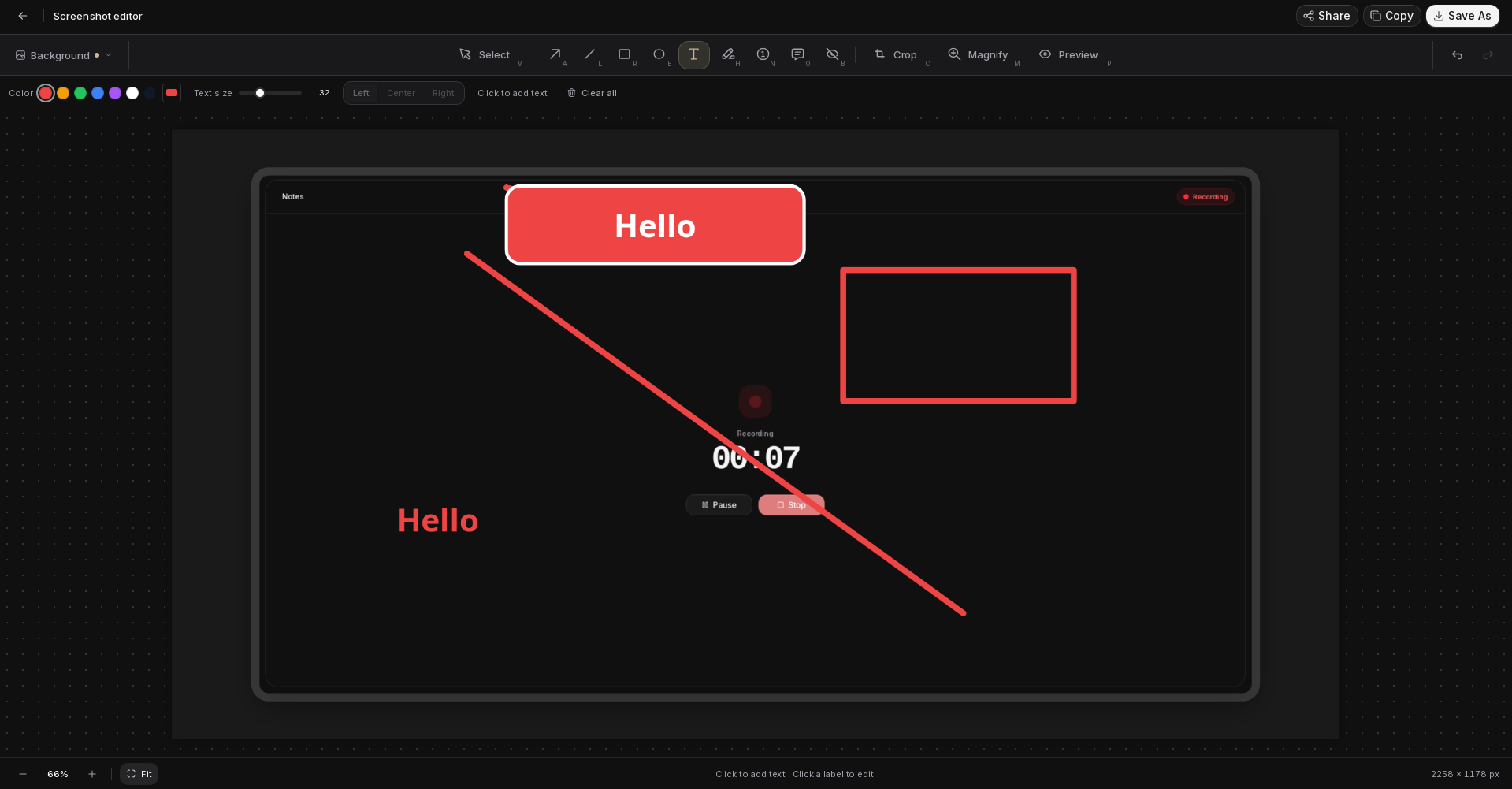
For a label without a bubble, choose Text, click the image, and type. Use Highlight and drag to mark an area, adjusting its color and opacity in the options row. Choose Numbered step and click to place each marker; the number increases automatically, and you can change a selected marker’s number.
In Select, Select all or Ctrl+A selects annotations and redactions. Pressing Delete or Backspace with all objects selected removes them all. Escape clears the selection and returns to Select. These shortcuts do not run while you are typing in a text field.
- Choose Arrow, Line, Rectangle, or Ellipse directly from the toolbar. Hover over an icon to see its name and shortcut. Set the color and thickness in the options row below it, then drag on the image.
- Choose Select or press V, then click a shape to select it. Drag its body to move it or its handles to resize it. Use Delete in the options row, or press Delete or Backspace, to remove the selection.
- For an explanation with a text bubble, choose Callout. Drag from the point you want to highlight toward the place where the bubble should appear.
- Click the bubble to type. With the callout selected, adjust Fill and Text size in the options row, or open Callout style for text color, alignment, border, roundness, and arrow settings. Drag the handles to resize the bubble or move the arrow tip.
Hide details before you share
Choose Redact, select Pixelate, Blur, or Solid cover, and drag over the detail you want to hide. Use Select or Redact to select an existing region, drag it to reposition it, or drag its handles to resize it. Use Delete to remove the selected region.
Changing the effect with a region selected updates that region and sets the effect for new regions. Other existing regions keep their own effects. For a selected Solid cover region, use Cover to change its color.
Inspect the finished image at a readable size. Use Solid cover or crop out sensitive text if you need to conceal it fully; blur and pixelation can leave details recognizable. Remember to check the title bar, tabs, notifications, and background as well.
Copy, Save As, and screenshot sharing include the finished edits. The editable project keeps the original image so you can change those edits later. Share the finished image when you want others to see only the edited result.
Undo or redo an edit
Use Undo at the right of the toolbar or press Ctrl+Z to step back through edits. Use Redo or Ctrl+Shift+Z to restore an undone edit. Ctrl+Y also redoes an edit. History includes annotations, redactions, crop, magnification, and background changes.
Click outside a text field before using these shortcuts for the image. While typing, the field handles its own text shortcuts. Undo and Redo are disabled when there is no corresponding edit available.
Undo history lasts for the current editor session. Reopening a project restores its saved edits, but does not restore earlier undo steps. Making a new edit after Undo clears the remaining redo steps.
Copy, save, or share the finished image
PNG is a useful first choice for screenshots with text. If the receiving app needs JPEG or WebP, choose that format in Save As. If a format is unsupported on your system, save as PNG instead.
The saved or copied image uses your final crop, zoom, background, and annotations, even when the editor is showing the selection controls.
- Copy or Ctrl+C copies the finished image as PNG. Paste it into an app that accepts images, such as a document, message, or slide.
- Save As or Ctrl+Shift+S opens a file picker. Choose PNG, JPEG, or WebP and a folder you can write to. Use the matching filename ending: .png, .jpg, .jpeg, or .webp.
- Share uploads the finished PNG and gives you a link. Choose Screenix hosted or Your storage when both are available. See Share a finished video or screenshot.
Return to an editable screenshot later
Screenix automatically saves screenshot projects after edits. New screenshot projects are stored in Pictures/Screenix in your home folder and appear in Projects. Pause briefly after your last edit before closing the editor.
Each project folder includes project.screenix and screenshot.png. Keep them together when moving or backing up the project. An exported PNG or JPEG is a finished picture; it does not preserve separately editable arrows or callouts.
If you use a custom background image, keep that image available in its original location as well. Reopen the project from Projects to continue editing.
For help with a missing project or image, use the contact form or email [email protected].