
Edit and export·5 min read
Set the background, camera and video shape
Frame a lesson, make a vertical video and move the camera out of the way.
On this page
Put your recording on a background
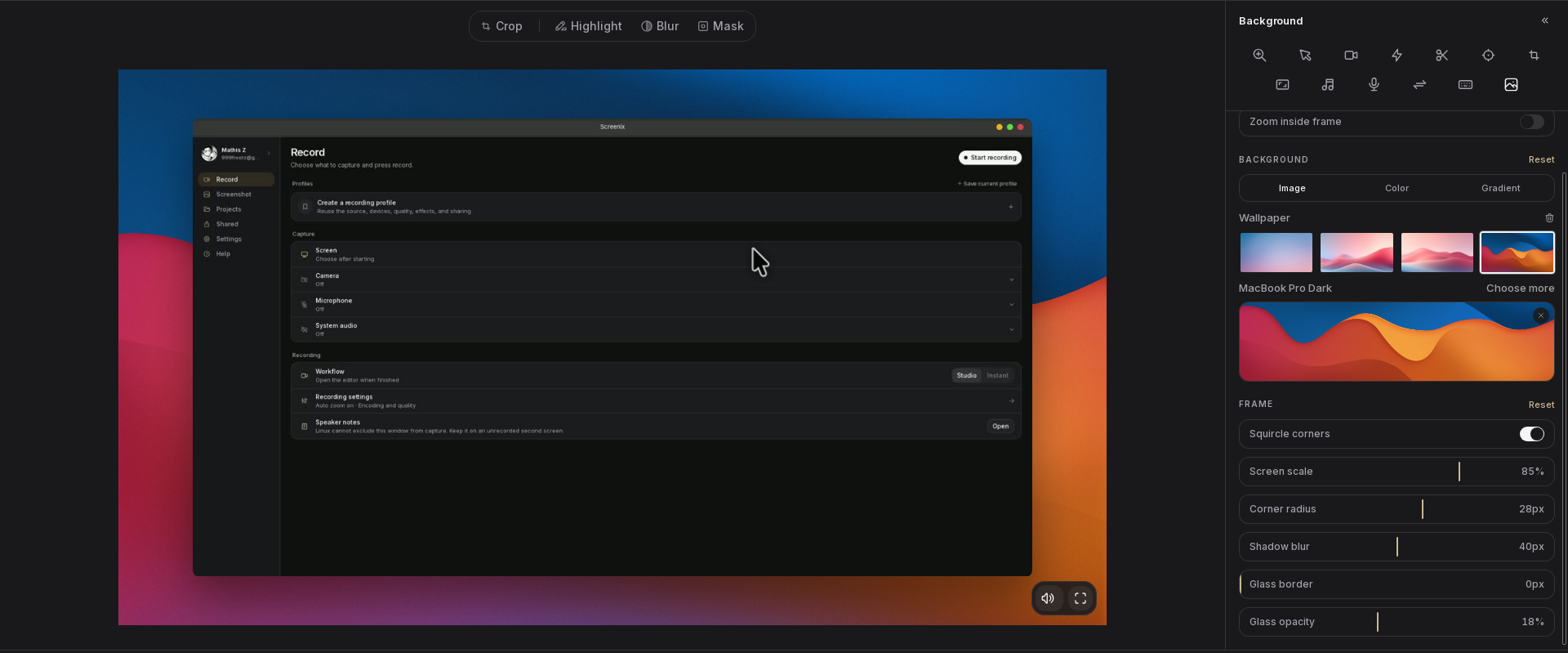
Keep a custom background image at its original file location so the project can find it again. Use the section reset controls when you want to return those settings to their defaults.
- Open Background and turn on Add a background.
- Choose Image, Color or Gradient. For a gradient, choose two colors and an angle.
- Adjust Screen scale to leave more or less space around the recording.
- Set the corner shape, shadow and optional glass border.
- Try Zoom inside frame if you want the zoom to affect the content inside the surrounding frame.
Make a landscape, square or vertical video
Open Ratio and choose Source, 16:9, 9:16, 1:1, 4:5 or 4:3. Use 9:16 for a tall frame, 1:1 for a square, or Source to follow the original recording shape.
Changing shape can hide the sides or top and bottom of the recording. Watch the whole result to check that menus, captions and important clicks remain visible.
When the ratio differs from the recording and a camera is enabled, Stacked puts the screen above the camera. Fill makes the screen fill the frame and follow available cursor data.
In Stacked, use Screen focus to choose the visible part of the screen. Choose a preset or Custom position. The timeline also offers Screen focus markers and Auto focus where available, so the visible area can change during the video.
Crop unwanted edges
Crop changes which part of the source is visible. Ratio changes the shape of the finished frame. Check your zooms, zones and camera after changing either setting.
- Open Crop and choose Edit crop.
- Drag the preview edges to keep only the area you want.
- Choose Apply crop, or Cancel to leave the earlier crop in place.
- Use the Crop video reset control to restore all edges.
Position and style a recorded camera
A camera recorded separately with Screenix can be edited in Camera. Enable Camera overlay, then drag it in the preview or choose a corner position.
Use Size, Roundness, Squircle and Shadow to style a bubble. When a background is enabled, the base layout also offers Left and Right beside Bubble. These presenter layouts place the camera beside the screen.
Use Horizontal pan to adjust what is visible inside the camera frame. Presenter size and, for applicable camera clips, Panel width control the space used by a side layout.
If the camera was not recorded, the editor cannot add a new webcam recording to that take. A camera already drawn into the source video cannot be separated from the screen.
Change the camera during the video
Selecting a camera block edits that block. Deselect it to return to the base camera settings, including Background, Sync and Zoom reaction.
For a camera that is early or late, adjust Sync > Offset in small steps and replay a visible action or spoken word. Positive values show a later point of the camera recording at the same point in the screen recording.
- Add full camera clip: expand the camera to the whole frame for an introduction or explanation.
- Add hide camera clip: fade the camera out while viewers need to see the whole screen.
- Add side-by-side clip: switch to a Split left or Split right layout for a section.
- Resize each camera block on the timeline and set its In transition and Out transition.
- Use Shrink during zoom in the base camera settings to make the camera smaller while the screen zooms in.
Blur or remove the camera background
In the base camera settings, choose None, Remove or Blur under Background. Blur also has a Blur amount control. These settings affect the camera image, while the separate Background panel controls the background behind the whole composition.
Camera background processing runs on your computer. If its model is not already available, Screenix may need an internet connection to download it. During export, Processing Camera can take extra time.
Use clear lighting and check edges around hair, glasses and moving hands. If removal looks uneven, try Blur or None and review a short export.
If something is missing or framed incorrectly
- Camera missing: check Camera overlay, hide-camera clips and the original .camera.mp4 companion file. Make sure you reopened the original Studio project.
- A camera setting disappeared: deselect the camera timeline block to see base settings again.
- Background disappeared: check whether you selected Fill or Stacked, then re-enable Add a background if that is the layout you want.
- Important content is cropped: use Screen focus, change the ratio or reduce the crop, then check the start and end of zooms.
- Background removal fails: try None to finish the export. If the error mentions LiteRT or a missing camera background component, contact support with the error and your installation type.