
Screenshots and sharing·4 min read
Connect your own storage
Use an existing S3-compatible storage account for share links, including with a lifetime license.
On this page
What you need
Your storage connects Screenix to an S3-compatible bucket, such as R2, AWS, Backblaze, or MinIO. A bucket is a folder-like space in a storage account. Your plan must include custom storage sharing.
You will need the bucket’s endpoint, name, region, access key ID, secret access key, and a public address that viewers can open. Your provider manages storage costs, permissions, and availability.
This setup is most useful if you already use object storage. If these terms are unfamiliar, eligible plans can use Screenix hosted without configuring a bucket. For help deciding how to connect an existing account, use the contact form.
Enter and save the connection
Public base URL should point to the root that serves the bucket’s objects. Screenix appends the prefix and filename itself. If you include the prefix in both fields, the returned link can point to the wrong place.
Without a Public base URL, Screenix builds the viewing address from Endpoint, Bucket, and the uploaded filename. Use that only when the resulting address is publicly readable.
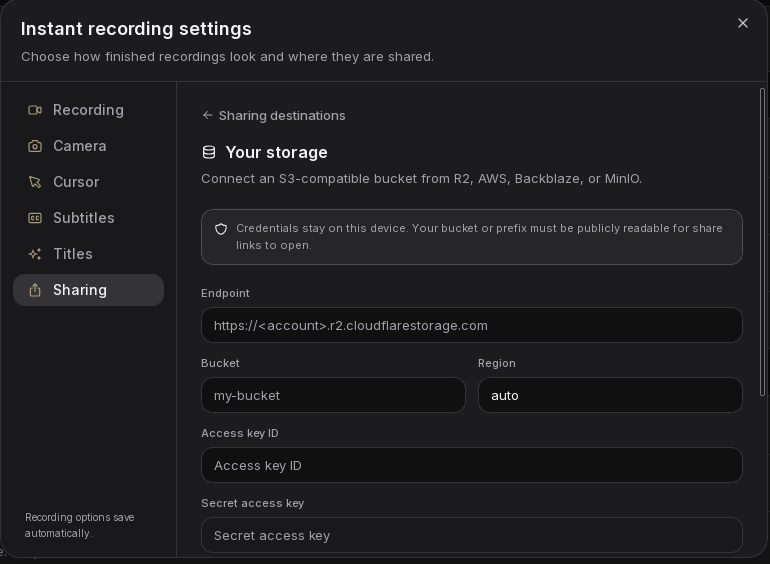
- On Record, choose Instant, open Recording settings, then Sharing. Choose Configure your storage, or Edit storage settings if it is already connected.
- Enter Endpoint, the storage service address. This is the API address, which may differ from the public address used to view a file.
- Enter Bucket and Region exactly as your provider specifies. R2 commonly uses the region auto.
- Enter Access key ID and Secret access key for this bucket.
- Set Public base URL to the address that serves the bucket’s files, such as your connected public domain. This is especially relevant when the API endpoint is not publicly readable.
- Optionally set Key prefix, such as screenix, to put uploads together under that path.
- Choose Test connection. Read the full result, then choose Save storage to keep the settings.
Understand the connection result
Connection successful. Objects are publicly readable. means the connection can write a small temporary file and open its public address. Screenix then removes the test file.
Write access works, but the test object was not publicly readable means upload access succeeded, but recipients will not be able to open the generated links yet. Check the bucket or prefix’s public read permission and the Public base URL, then test again.
The test also needs permission to delete its temporary file. A delete error can mean the credentials allow uploading but not removing that test file. Check the provider’s permissions before using the connection.
Testing a new value does not save it. Choose Save storage after the connection result is correct.
Share to your bucket
An ordinary upload gives you a direct link to the media. A video uploaded with a separate caption file can use a small viewing page beside the video and captions in your bucket. Your public address must serve those files correctly.
The password, team access, comment, expiry, and delete controls in Screenix’s hosted dashboard do not manage these uploads. Use your storage provider to manage the files and their public availability.
- Export the finished video, or finish editing the screenshot.
- Choose Share, then Your storage if a destination choice appears.
- Upload the file and copy the resulting link.
- Open the link in a private browser window to confirm that a recipient can view it.
Change settings or remove the connection
The connection settings stay on the device, and the secret access key is stored in the system keyring. After saving, the secret field is blank. Leave it blank to keep the stored secret.
If Screenix says the secret key is missing, enter it again and save. If the keyring cannot store it, check that your desktop’s password storage is available and unlocked. Do not send a secret access key in a support message.
Remove configuration removes the saved connection from Screenix. It does not delete files already uploaded to the bucket or revoke the provider’s access key. Manage those separately with your provider.
To remove a custom storage share, delete its objects with your provider. For a captioned viewing page, remove the related video, .vtt caption file, and .html page. Changing the connection in Screenix does not update older links.