
Get started·5 min read
Make your first Screenix recording
Install Screenix, choose a workflow, and turn your first screen recording into a video you can use.
On this page
Install the package for your Linux computer
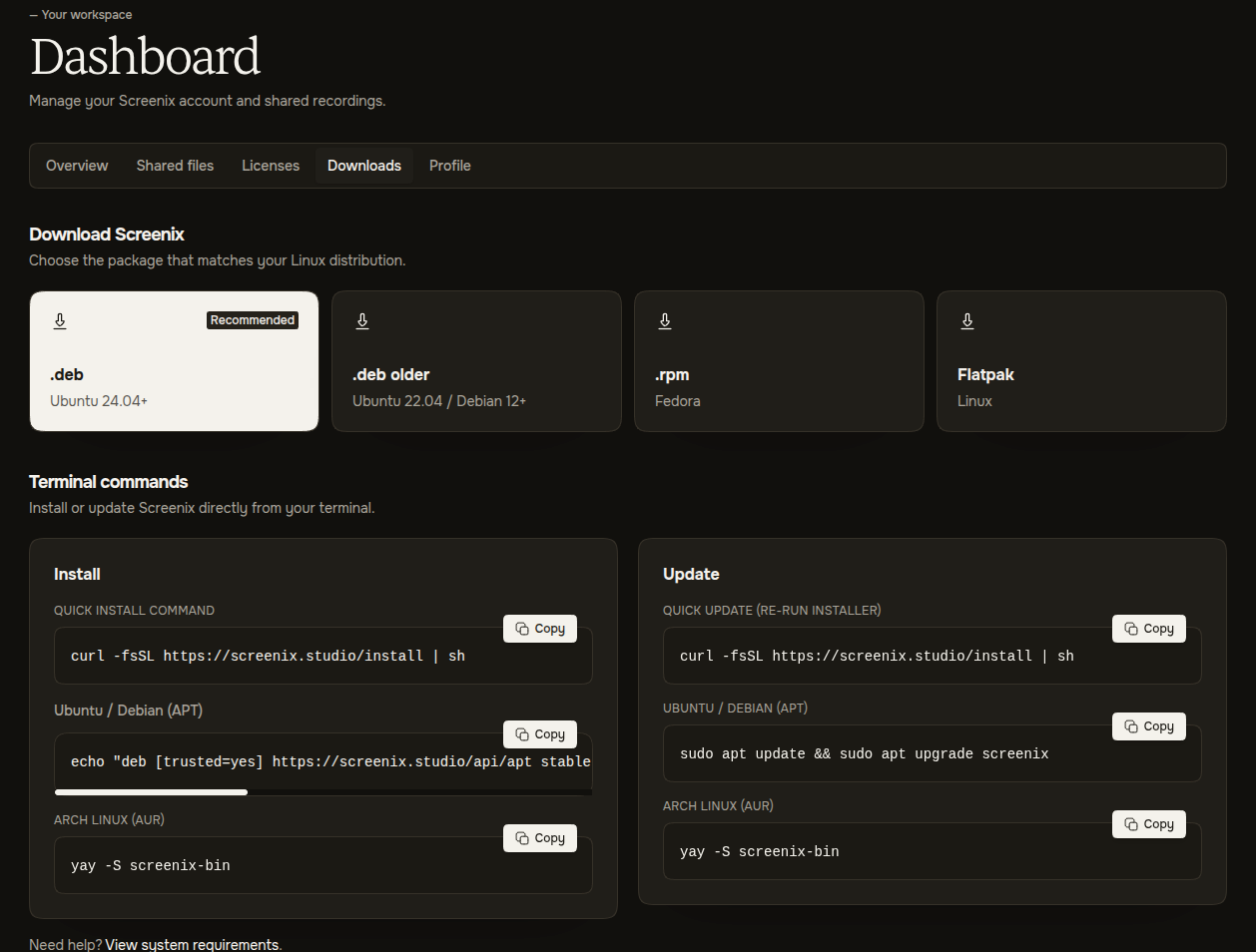
Screenix is a Linux desktop app. Open the downloads page and choose the package that matches your distribution. A distribution is your version of Linux, such as Ubuntu or Fedora.
Open the downloaded package with your software installer and follow its prompts. If you prefer a terminal, the downloads page also provides the official install command, Ubuntu and Debian APT instructions, and the Arch Linux AUR command. Use the commands shown there for your system.
- Ubuntu 24.04 or newer: choose the regular .deb package.
- Ubuntu 22.04 or Debian 12 and newer: use the .deb older compatibility option where appropriate.
- Fedora: choose the .rpm package.
- Other Linux setups: check the Flatpak option on the downloads page and the system requirements.
Finish the first-time setup
- Open Screenix from your application menu.
- Choose Start trial, or use the license key from your purchase confirmation email to log in. If you already started a trial, choose Continue trial and enter the same email address.
- If Screenix opens Setup Required or Recording setup required, let the package installation finish. Your computer may ask for its administrator password.
- On Wayland, if the dialog still says Wayland portal is not ready, follow its displayed repair instructions and choose Check again. The Linux setup guide explains this in plain language.
- Open Settings, find Save location, and choose where new recordings and projects should go. Without a custom location, Screenix uses Videos/screenix in your home folder.
Choose Studio or Instant
On Record, find Workflow. Choose Studio when you want to cut mistakes, adjust zooms, style the background, or refine the camera after recording. Screenix saves an editable project and opens the video editor when you stop.
Choose Instant for a quick explanation, lesson update, or feedback video. Screenix prepares an MP4 with your chosen zoom, cursor, and camera appearance, then opens a preview. A selected sharing destination can upload it automatically.
Choose Recording settings below the workflow to open the options for that mode. Start with the defaults. You can tune quality and effects after you are familiar with the basic workflow.
Record a short practice video
- Open the lesson, slides, website, or app you want to show. Close private tabs and silence notifications before capturing an entire display.
- Choose the capture source. On X11, select Display or Window in Screenix. On Wayland, Screen says Choose after starting because your desktop will ask you to pick the source.
- Select your Microphone and watch its level move as you speak. Select System audio only if you want the sound your computer is playing. Choose No camera if you do not want a camera overlay.
- Press Start recording. If your desktop asks what to share, choose the intended screen or window and approve it. Wait for the start countdown to finish.
- Speak for about 20 seconds, click something you want to demonstrate, then press Stop. Give Screenix time to finish processing.
- Watch the result and listen to the sound. In Studio, the editor opens for further changes. In Instant, the finished preview opens and shows whether the video is local, uploading, or shared.
Make a finished file or send a link
Follow Export a video for format and quality choices, or Share a finished video or screenshot for upload limits and viewer access.
- In Studio, adjust the start and end if needed, then click Export at the top right. Choose MP4, a destination folder, and a filename. Keep the defaults for your first try.
- Wait for Export complete, then choose Open File and watch the finished result. This file includes your editor changes.
- To send a link from Studio, return to Share and select the finished export. In Instant, use Share video from the preview if you did not choose automatic sharing.
- Wait for the link to be ready, open it, and review the result before sending it. Sharing options depend on your trial or license.
Find your work and keep Screenix up to date
Open Projects to find local Studio, Instant, and Screenshot projects. Saving a Studio project keeps its editing settings for the next time you open it. See projects and imports for reopening and keeping your work organized.
Open your profile in the sidebar to check for updates. When a release is available, Update & restart in Settings installs it and restarts Screenix for supported DEB and RPM installations. Finish your recording and save your project first. See Settings and updates for other installation types.
If an update fails, use Try again or return to the downloads page for the installer. For help at any point, use the contact form or email [email protected].