
Record your screen·4 min read
Record your voice, computer sound, and camera
Choose the right microphone and output device, check levels, and add a camera overlay without surprises.
On this page
Choose the sound you want to record
Microphone records your voice. System audio records sound from a selected computer output, such as the speakers or headphones playing a video. These are independent controls: you can record either one, both, or neither.
Selecting an application window limits the picture, but system audio still follows the chosen output. Other apps playing through that output can be heard in the recording too.
For a spoken lesson, choose your microphone and leave system audio off unless you will play a clip. For a demonstration with narration and app sound, enable both. For a silent visual walkthrough, choose No microphone and No system audio.
- Open Microphone and select the exact input you want to use. Speak at your normal volume and watch the level meter.
- Open System audio, select the output your computer is playing through, and play a short sound. Check that its meter moves.
- If a device is missing, connect it and use the refresh button in the picker.
- Make a short recording and listen to it before starting a long lesson or presentation.
Fix missing or unexpected sound
After changing an audio device, pause state, or sound settings, listen to the start and end of a short recording. If audio drifts, disappears after resume, or repeatedly fails, send the exact steps and device names through the contact form.
- No microphone sound: make sure a microphone is selected, check its physical mute switch, and check the input volume in your Linux sound settings.
- No computer sound: choose the output currently playing your audio. If you switch from speakers to a USB headset or Bluetooth device, reselect the output in Screenix.
- A device was disconnected: refresh and choose it again after reconnecting. Screenix can fall back to a default device, so do not assume the previous selection still points to the same hardware.
- Meters move but playback is silent: check that the preview player and your computer output are not muted. Open the finished video in another player to narrow down whether the problem is playback or capture.
- Echo or doubled sound: use headphones when recording microphone and system audio together, so the microphone does not also pick up sound from your speakers.
- Sound is too quiet or distorted: adjust the input level in your Linux sound settings and make another short capture at your normal speaking distance.
Add a camera overlay
Leave room for the overlay when arranging your demonstration. Put important buttons, text, or slide content away from the area where your camera appears.
- Open Camera and select your webcam. Choosing a camera enables its overlay.
- Choose Preview in the camera picker to check the image and framing.
- In Studio, record with the camera enabled, then adjust its layout and appearance in the editor.
- In Instant, open recording settings and choose Camera to set the overlay size, corner radius, and position before recording.
- Choose No camera when you want only the screen.
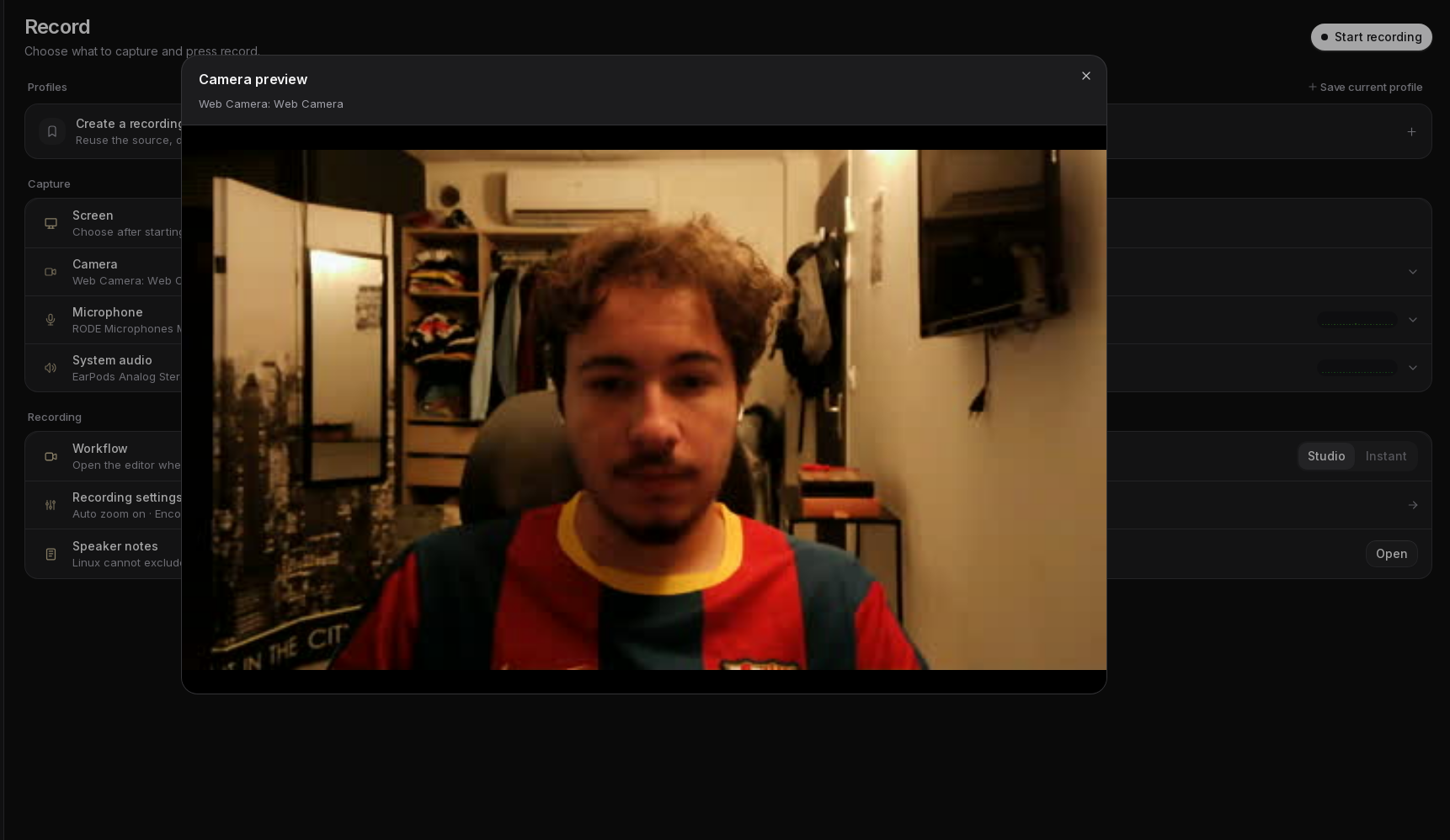
Fix a missing or black camera
If the camera image and your voice do not line up in Studio, use the camera sync adjustment in the editor and review a moment where your lips clearly move. For recurring issues, email [email protected] with the camera model and whether the problem also happens without pausing.
- Connect the camera, open its privacy shutter, and refresh the camera list.
- Close another app that may be using the same camera, then open Preview again.
- Check that the camera works in your Linux camera app and that your installation has permission to access it.
- If screen recording works with No camera, make a short screen-only recording while you resolve the camera problem.
- A camera that is missing, blocked, or interrupted during capture cannot be recreated afterward. Always review the camera in the completed recording.