
Edit and export·6 min read
Export a video and recover from problems
Choose a format and quality, find the finished file and retry an interrupted export.
On this page
Create the finished file
The suggested output name ends with _export. Keep the export separate from the original recording. Use a new filename for each version you want to keep, because exporting to an existing name can replace that file.
The finished export includes the active edits in the kept part of the video. Copy Path copies its location on your computer, and Export Another returns to export settings.
- Save the project, then click Export at the top right of the editor.
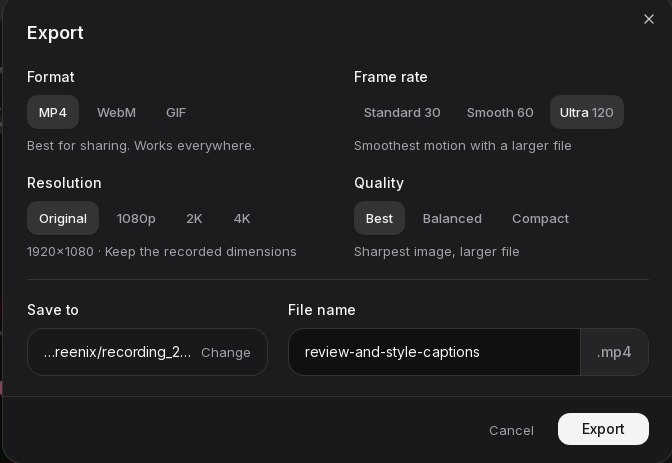
- Choose Format, Frame rate, Resolution and Quality.
- Use Save to > Change to choose a folder you can write to.
- Enter a File name. Screenix adds the selected file extension.
- Click Export and wait for Export complete.
- Choose Open File to watch the finished result or Show in Folder to find it.
Choose the right format
- MP4: a practical starting choice for lessons, demonstrations, presentations and uploading to video platforms. It includes audio.
- WebM: useful for web video when the destination supports it. It includes audio and uses an additional conversion step.
- GIF: a short, silent animation for showing a quick action. It cannot include your voice or imported music.
Balance detail, motion and file size
For a first export, try MP4, 1080p, Smooth 60 and Balanced. Choose Best if small text loses clarity. Choose Standard 30 or Compact if the file is larger than you need.
A larger export cannot restore detail that was not captured. If text is already difficult to read in the source, a closer crop or a manual zoom may help more than choosing 4K.
- Original: follows the source dimensions while the editor's crop and layout still apply.
- 1080p: a useful size for many tutorials. 2K and 4K give a larger output for more detail when the source supports it.
- Standard 30: a smaller frame rate for everyday videos.
- Smooth 60: a good starting point for cursor movement and zoom effects.
- Ultra 120: more frames and potentially more export time and file size. The source recording still limits how much original motion detail is available.
- Best: keeps more image detail with a larger file. Balanced: reduces size while keeping good detail. Compact: prioritizes smaller files.
Wait for the completion message
Export can pass through Computing Zoom, Processing Camera, Encoding and Finalizing. Camera background effects, long recordings, higher resolutions and frame rates can take more time.
Finalizing may show 100% while Screenix joins saved sections, converts the format, mixes audio or adds a watermark. Wait for Export complete before opening or sharing the result.
Keep enough free space for the final video and temporary work files. These may use both the output drive and the drive containing your home folder or cache.
If your license includes a watermark, it appears in the finished export. After upgrading to a license without a watermark, reopen the project and export again to create a clean file.
Cancel or retry an interrupted export
An export is saved in sections as it progresses. A cancelled final output is removed, but completed sections can remain available for a retry. Resume is automatic; there is no separate Resume button.
Changing the media, effects, format, quality or app version can require a fresh export. Saved sections are temporary and are not a backup of your project. Do not clear Screenix caches when you are trying to resume an interrupted export.
- To stop the current export, click Cancel and wait for cancellation to finish. Closing the export dialog while it is working also requests cancellation.
- Keep the project, source media and export settings if you want to retry.
- Open Export again and start with the same settings.
- If saved sections are available and still match, Screenix reports that it is resuming and reuses them.
Fix common export errors
- Video is not ready for export: wait for the preview to load. Reopen the original project if it remains unavailable.
- Input file not found: reconnect the drive or restore the original video to its saved location.
- Export duration is empty or Export contains no visible video: check the trim range and restore a cut so some video remains.
- Could not create a checkpoint, temporary file or output: check free space and folder access. Choose a writable local destination and a simple new filename.
- Camera background processing failed: set the camera Background to None and retry. Keep the exact error for support.
- Audio mix failed: make sure imported audio files still open and have not moved. Remove the affected imported audio clip and retry if you need to isolate the problem.
- GIF or WebM conversion failed: try MP4 first to see whether the main export succeeds. Include the selected format when reporting the issue.
- A trial or license message appears: follow the account or upgrade prompt, then return to the saved project to export.
If playback or the finished file looks wrong
A preview can briefly show Loading video position or Preparing video preview while Screenix seeks or creates a more suitable preview copy. Longer recordings can take several seconds. If it repeatedly fails, save the project and reopen it, then check that the source video can play in your usual video player.
On Fedora, a missing H.264 playback component can affect the editor. If Screenix shows the Fedora notice, use its How to fix help. For instructions suited to your Fedora version, contact support rather than using package commands for a different release.
If the finished video seems to have none of your edits, make sure you opened the _export file instead of the original recording. If a finished export has missing effects, bad colors, audio timing problems or a frozen section, keep the project and note the exact times where it happens.
Send the details that help us investigate
Click Export failed. Click for details. when it appears, then copy the error text or take a screenshot. Send it through the contact form or to [email protected].
- Your Screenix version, Linux distribution and installation type.
- Whether this is a Studio or Instant recording, plus its approximate length and dimensions.
- The export format, resolution, frame rate and quality you selected.
- Whether camera background effects, cuts, speed changes, captions or imported audio are used.
- The stage that fails and any exact times where the result differs from the preview.