
Record your screen·5 min read
Record a screen or application window
Choose your source, set recording quality, pause safely, and reuse your setup with profiles.
On this page
Choose what your viewers will see
Use a full display for a walkthrough that moves between several apps. Use a window when your explanation stays inside one application. Check the selected source before every take, especially after connecting a different monitor.
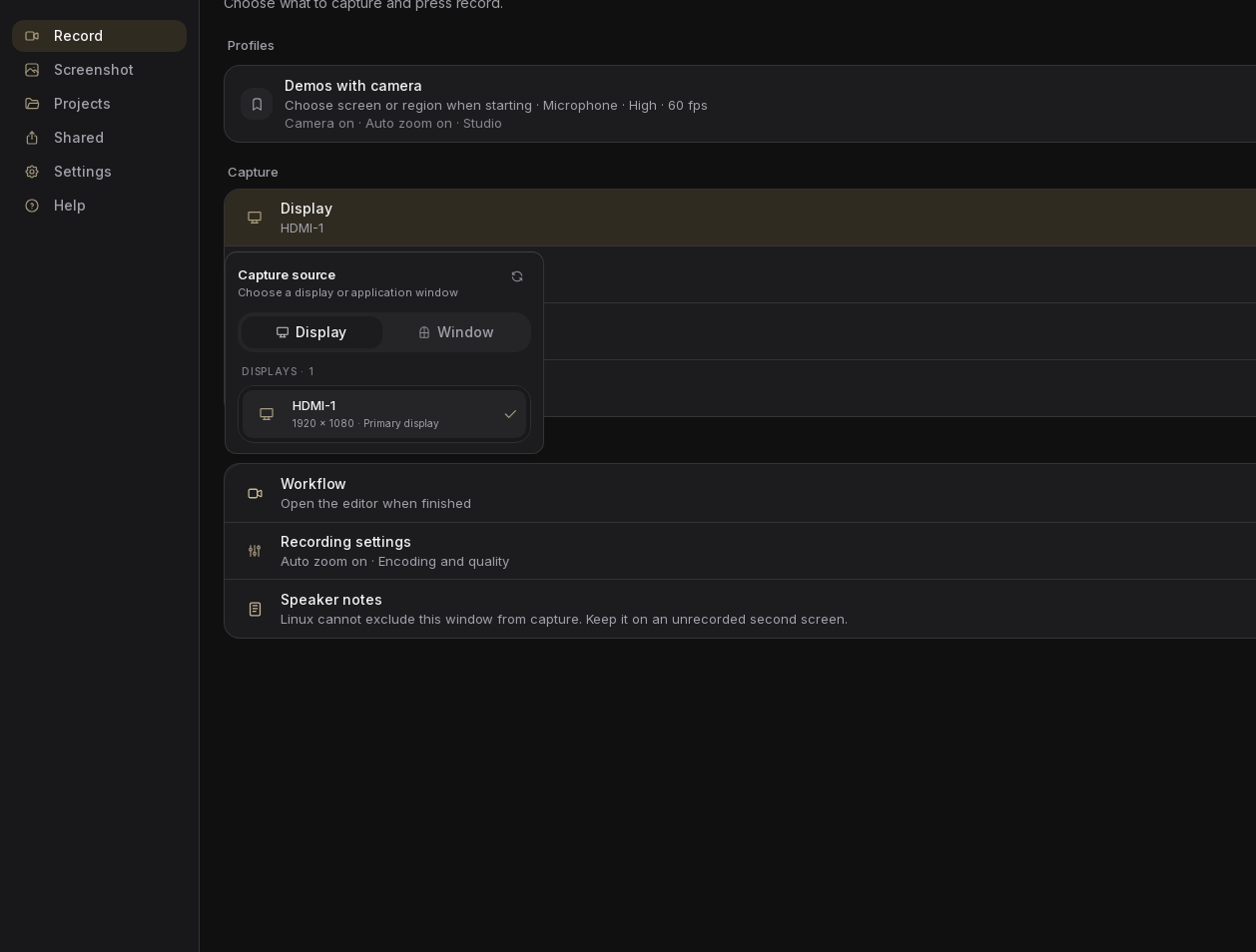
On X11: open the Display or Window row, choose a tab in Capture source, and select the display or open window. Use the refresh button if the item is missing.
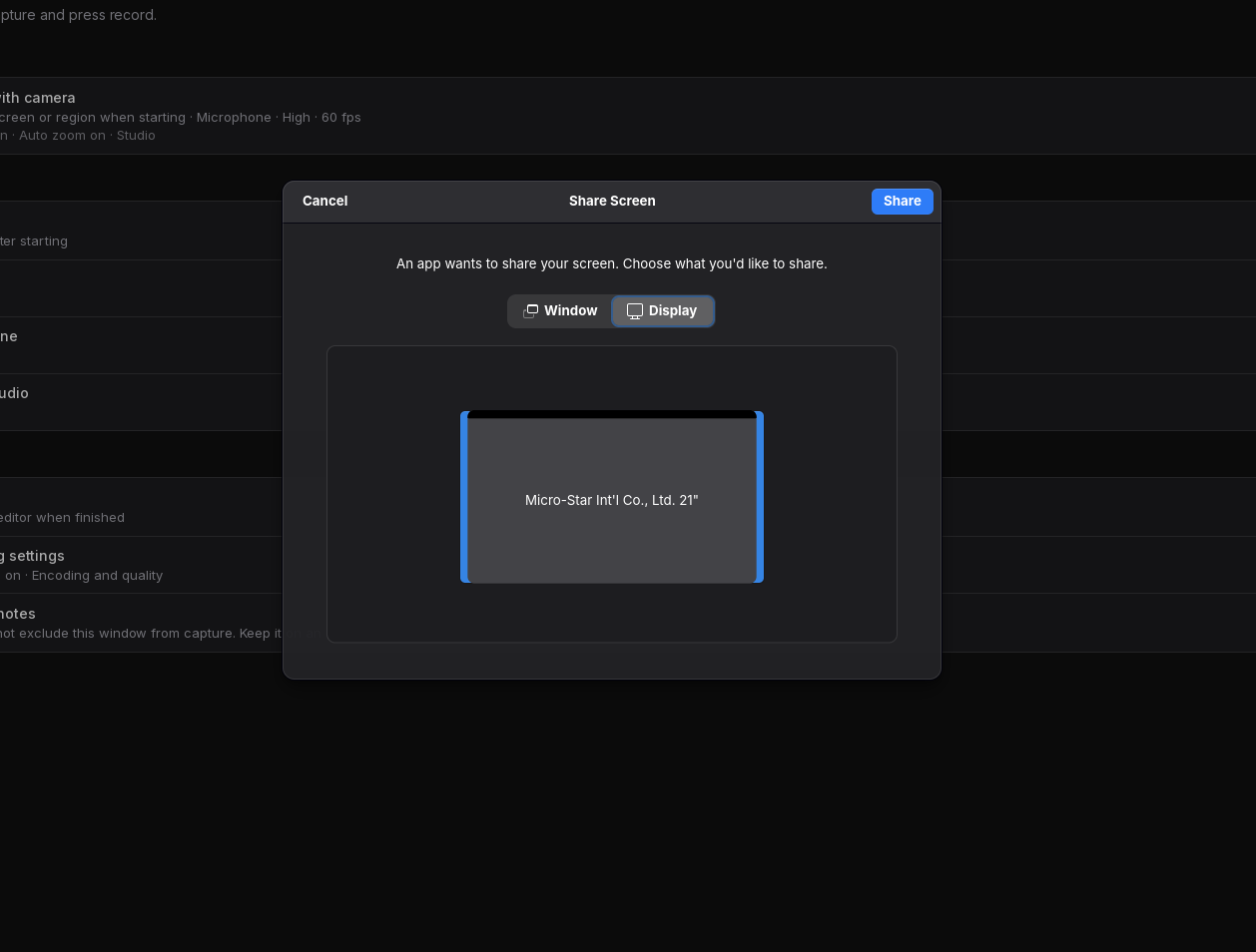
On Wayland: Screen shows Choose after starting. Press Start recording, then choose the source in your desktop's sharing dialog. The screen, window, or region choices available there depend on your desktop. The selection in that dialog determines what Screenix records.
Set up a Studio recording
Select Studio under Workflow, then open Recording settings. Changes save automatically. These options affect the source recording, while the editor's export dialog controls the finished video you export later.
- Auto zoom: creates editable zoom effects from cursor activity. You can refine them after recording.
- Start countdown: gives you time to return to your content. Set it to Off to start without a countdown.
- Frame rate: Studio offers 30 or 60 frames per second. Choose 30 for a mostly static lesson or slides, or 60 for smoother movement.
- Encoder: Automatic uses available hardware and can fall back to software. If hardware encoding causes trouble, try Software.
- Preset: faster choices reduce processing work during capture. Start with a faster preset if recording struggles.
- Quality: higher quality increases source file size. Lossless can use substantially more space than High or Good.
- Format: choose MP4 for Studio recordings so Screenix can keep the related cursor, zoom, and camera data connected. If you need WebM, choose it later in Export. Recording directly to WebM can leave those editing features unavailable in the current app.
Start, pause, resume, and stop
- Choose the source, check audio and camera, and press Start recording.
- Approve the sharing dialog if it appears, then wait until the countdown finishes and the recording timer is running.
- Use Pause recording in the recording toolbar when you need a break. Confirm the paused state before continuing with anything you do not want in the final video.
- Use Resume recording to continue the same take. Paused intervals are removed from the finished recording.
- Use Stop to finish. You can also use your configured start/stop shortcut or the system tray controls.
- Wait for processing to finish. Studio opens the editor; Instant opens the finished preview. Longer recordings, camera processing, pauses, and format conversion can add time here.
Save a recording profile
Profiles save a reusable setup for activities such as a weekly lesson, a product demo, or recorded feedback. They store the source, audio and camera choices, workflow, recording quality, cursor effects, auto zoom, and Instant sharing destination.
- Arrange the recording controls the way you want.
- Under Profiles, choose Save current profile, give it a recognizable name, and save it.
- To reuse it, choose Record beside the profile. This restores its settings and starts the recording flow.
- To change it, use its edit button. Adjust the controls below, then return to Editing recording profile and choose Save changes.
- On X11, the saved monitor must be connected and the saved application window must be open. Reopen it or update the profile if Screenix cannot find it.
- On Wayland, the profile still opens the system source picker. It does not bypass permission or guarantee that the previous source is selected.
- Review devices after reconnecting hardware. A profile may use another available camera if its original camera is missing.
- Countdown, subtitle settings, and automatic title settings are not part of the saved profile. Review those before an important take.
- Deleting a profile removes the saved setup. It does not delete the recordings made with it.
When capture does not go as expected
If the problem repeats, use the error's support action or the contact form. Include the message, selected workflow, whether you used a display or window, and what happened just before capture failed.
- Missing window: open and unminimize it, refresh the source list, and select it again. If the selected window disappears, Screenix can fall back to another available window. Always recheck the source after closing or replacing an app window.
- Wrong display or cropped content: stop and select the source again. Recheck it after a resolution, display scaling, or monitor layout change.
- Blank or black recording: try capturing a full display. On Wayland, review Linux setup. On X11, check that the FFmpeg installation supports screen capture.
- Recording quality warning: read the message. A warning can mean recording is continuing while usable footage is preserved. Stop at a convenient point and review the result before continuing a long session.
- Recording stopped unexpectedly: look for the saved footage and read the error before making a new take. A failure can leave only the usable portion recorded before the interruption.
- Could not finalize the recording: check free disk space and the save location. Try Software encoding and a lower frame rate for the next short recording.