
Edit and export·5 min read
Open, save and keep your projects
Reopen an edit from Projects, save your changes and keep the files your project needs.
On this page
A project and an exported video do different jobs
A .screenix project remembers your editing choices, such as cuts, zooms, camera position and captions. Open it in Screenix when you want to continue editing.
An exported video is the finished file you give to your audience. Use Export to include your edits in an MP4, WebM or GIF. Opening the original recording in another player shows the source video, so your editor changes may be missing there.
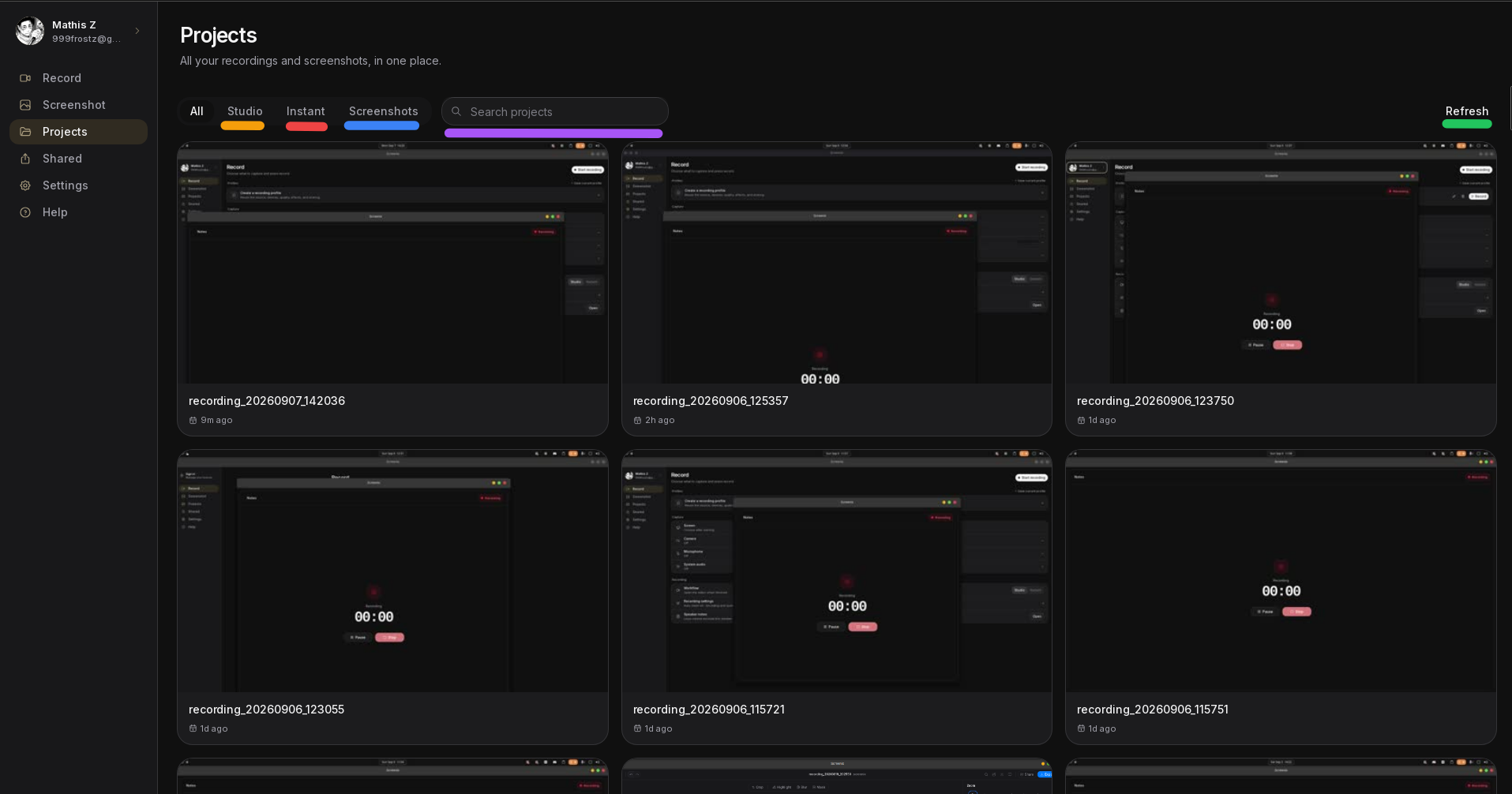
Reopen a recording from Projects
Projects looks in your home folder's Videos folder and Pictures/Screenix, including the first two levels of folders inside them. Recordings in the default Videos/screenix location fit within this search.
The current app does not offer a file picker for opening an arbitrary project or importing an external video. Start a new Studio recording when you want a new editable video project.
- Open Projects in the Screenix sidebar. Sign in if the app asks you to.
- Use Search projects or the type filters to find the recording. Choose Refresh if it was saved recently.
- Click the project card. Studio recordings open in the editor, Instant recordings open in their preview, and screenshots open in the screenshot editor.
- Wait for the preview to load before adding effects or exporting.
Save your work
Screenix automatically saves many editor changes to the current project after a short pause. A small dot beside the project name indicates unsaved changes.
Save explicitly after editing transcript text, subtitle styling or keyboard overlay settings, and before closing an important session. Do not rely on the absence of a dot as confirmation that every type of change has been saved.
Saving under another name gives you a separate set of editing choices. Both projects can still refer to the same source media, so keep that media for both versions.
- Click the project name at the top of the editor, or open Commands and choose Save project.
- Choose the project filename and location in the save dialog. Save it in your Videos folder or one of its first two levels of folders so Projects can find it again.
- Use Open folder to find the recording and its companion files.
Back up a project or move to another computer
- Back up the whole recording folder, including the .screenix file, MP4, metadata, cursor data and separate camera recording when present.
- Keep any music, sound effects and custom background images that you added. These files can live outside the recording folder.
- Project files remember the original file locations. Moving or renaming source files can break the project, even if the .screenix file still opens.
- There is no project relink wizard in the current editor. If media has moved, restoring it to its original location is the simplest recovery. For a move between computers, contact support before changing project files by hand.
Find a project saved in a custom folder
Changing Save location for recordings does not add that folder to the Projects search. A project outside Videos or Pictures/Screenix, or deeper inside those folders, may be saved correctly but missing from the list.
If the Studio editor is still open, click the project name and save a .screenix copy in your Videos folder. Keep the source media where it is. The saved project continues to reference those files, and Projects can find the new project copy after Refresh.
If the editor is already closed, keep the files intact and contact support for help reopening the project. Do not delete the recording simply because it is missing from Projects.
Work with one recorded video per project
The current Studio workflow edits one Screenix recording at a time. It does not offer a supported way to import an external video or combine several source videos into one saved, exported project.
Keep the original Studio project to preserve separate zoom, cursor and camera editing. A finished video contains the visible result and cannot recreate those separate layers or keyboard events on its own.
If a project will not open
- Unsupported project version: the project may have been saved by a newer Screenix version. Open it with that version or a compatible newer version.
- No associated video file: the project is missing its reference to the recording. Keep the project and source files and contact support.
- Missing or black video: check that the original video still exists at the location used by the project and that an external drive is connected.
- Preparing video preview: Screenix is making a copy that is easier to play and seek. Give it time and keep enough space in the recording folder.
- An unreadable project file: preserve the file and email [email protected]. Include the error text and what happened before it stopped opening.