
Record your screen·3 min read
Speaker notes, shortcuts, and tray controls
Keep a script nearby, control recordings from another app, and reuse the controls that fit your workflow.
On this page
Open your speaker notes
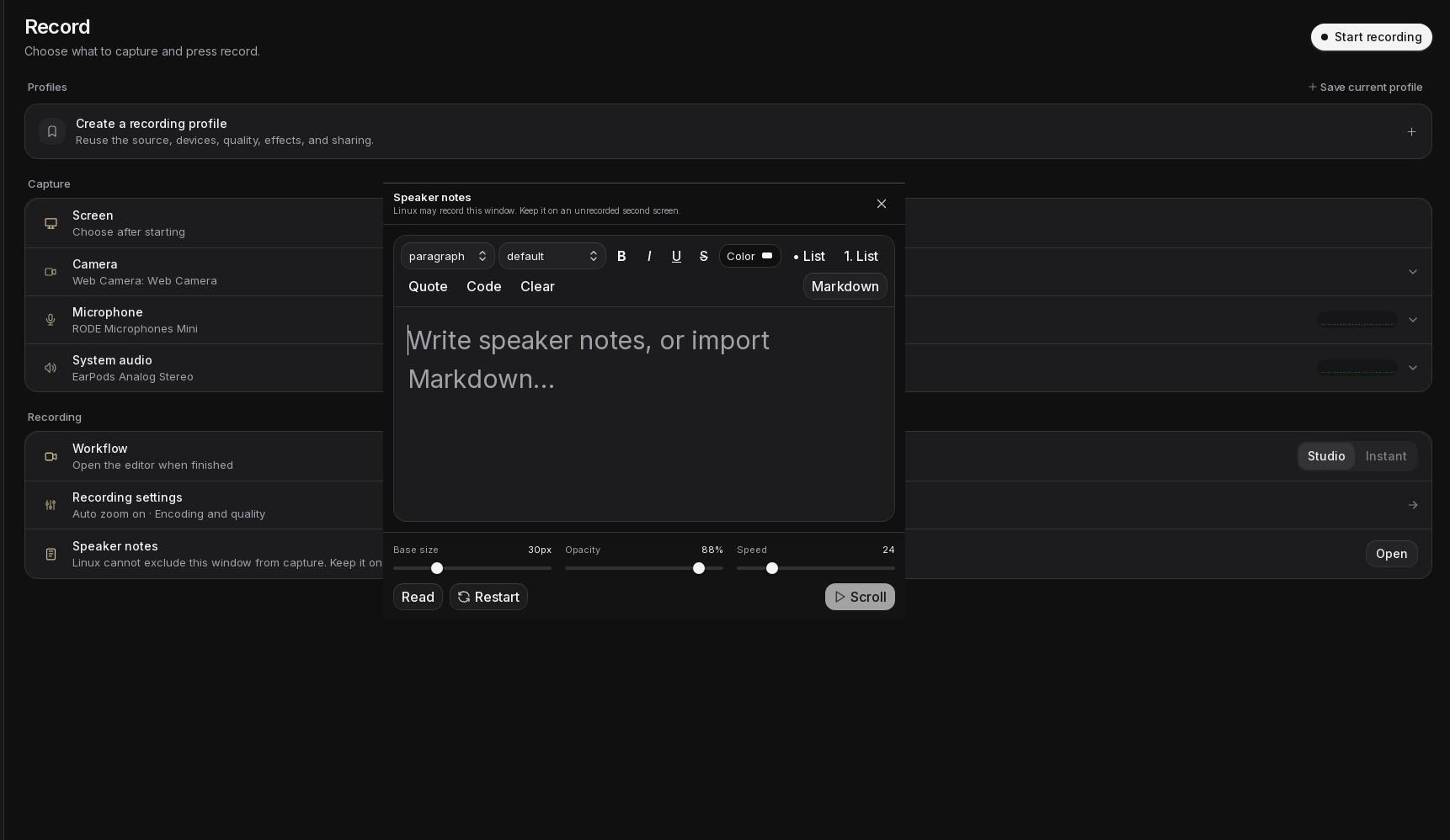
The teleprompter is a small Speaker notes window that stays above other apps. Open it with Open in the Speaker notes row before recording, or Notes in the recording toolbar.
- Open Speaker notes and choose Edit if the text editor is not already visible.
- Type or paste the script for your lesson or demonstration. Use the formatting controls to make cues easy to scan.
- Choose Read when you are ready to present.
- Adjust Base size so you can read comfortably, then set Opacity and Speed.
- Choose Scroll to move through the text automatically. Use Pause to stop scrolling or Restart to return to the beginning. Restart leaves scrolling paused.
When the notes do not scroll
Your script and note settings are stored locally. Keep another copy of an important script in your usual document app.
- Scroll is disabled: switch from Edit to Read, add some text, and set Speed above zero.
- Scrolling stopped at the end: choose Restart, then Scroll to begin again.
- The notes look faint: increase Opacity. Moving the pointer over the window makes it fully visible while you interact with it.
- You closed the notes: the close button hides the window. Reopen it from Screenix to return to your saved notes.
- You edit during scrolling: entering Edit pauses scrolling. Choose Read and then Scroll when ready.
Record while another app has focus
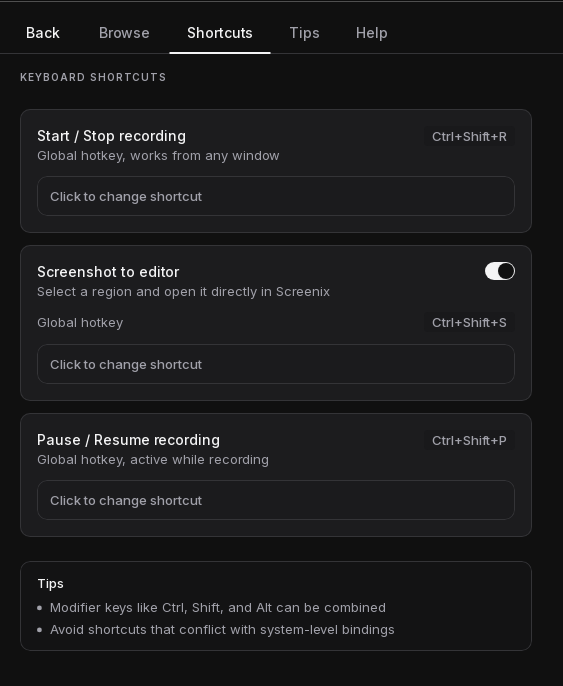
Open Settings, then Keyboard shortcuts. Screenix shows the shortcuts currently configured on your device.
- Choose Click to change shortcut under the action.
- Press your new key combination, using a modifier such as Ctrl, Shift, or Alt.
- Confirm that the displayed shortcut changed.
- Try it in a short recording before using it during a live lesson or presentation.
- Ctrl+Shift+R: default for Start / Stop recording. Press once to start the recording flow and again to stop an active recording.
- Ctrl+Shift+P: default for Pause / Resume recording. It applies while a recording is active.
- Ctrl+Shift+S: default for the optional Wayland Screenshot to editor shortcut. Enable its switch first, then use it to select a region and open the result in Screenix.
Fix an unresponsive shortcut
- Check the key combination shown in Screenix. A previously customized shortcut replaces the default.
- Choose a combination that your desktop, browser, editor, or presentation app is not already using.
- For Pause / Resume, confirm that recording is active. For Screenshot to editor on Wayland, confirm its switch is enabled.
- If Screenix reports that keyboard devices cannot be read, review Linux input permissions. Log out and back in after approved permission changes.
- After connecting another keyboard, restart Screenix and retry. Use the toolbar or tray controls until the shortcut works reliably.
Use the system tray
When enabled, the Screenix tray icon provides quick recording controls, screenshot capture, a way to show Screenix, and a quit action. The icon reflects the recording state. The desktop controls whether and where tray icons appear.
Open Settings and change System tray icon to control this behavior. Disabling it requires a Screenix restart. Choose Later if you need to finish your work first.
If the tray is not visible on your desktop, use the Screenix window and keyboard shortcuts. For persistent shortcut or tray problems, use the contact form and include your Linux desktop name.